Showing posts with label Xubuntu. Show all posts

October 28, 2008

VirtualBox : Fix "Spawning Session" problem

After installing some Ubuntu updates, I noticed that I couldn't start any Virtual Machine in Virtual Box.It shows a “spawning session” dialog which stuck at 0% forever.


Solution for the problem

If you can't close or terminate your VirtualBox program which is stuck with the 'Spawning Session' problem, just open the terminal and force kill the VirtualBox
  • type sudo killall VirtualBox in the terminal
Now you need to recompile the kernel module for VirtualBox, It's not that hard
  • just type sudo /etc/init.d/vboxdrv setup to recompile the kernel module and wait for a few seconds
You will get an output like the following
  • * Stopping VirtualBox kernel module * done.
  • * Removing old VirtualBox kernel module * done.
  • * Recompiling VirtualBox kernel module * done.
  • * Starting VirtualBox kernel module * done.
Now you can start playing with your virtual machines.

October 25, 2008

Elisa : Turn your Linux Box into a Media Center

Jealous with that Jaw-dropping Front Row or Windows Media Center ? Checkout Elisa, an open source cross-platform media center with simple looks and stable performance.


The Elisa Media Center boasts of many advanced features that will help you turn your Linux Box into a Media Center. Everything is packed in a simple interface with a professional look and feel.

Features

Movies - Watch your Video files and Movies, you can even watch your favorite videos from youtube and other sites.


Music - Listen to your Favorite Songs and organize your music collection by artists or album covers.


Photos - Entertain your friends with your animated slideshows and image previews.


Peripheral Devices - Let it be an iPod,External Hard Disk or a Digital Camera, Elisa Automatically detects them all.


Internet - Let it be Youtube, Flicker or other popular sites. You can have all of them at your fingertips.


Click here for a more detailed list of features.


Installing Elisa in Ubuntu

  • Installation of Elisa in Ubuntu and its Variants (Xubuntu,Kubuntu) are as simple as plucking a flower, just type sudo apt-get install elisa in the terminal.

Configure Your Media Directories
  • If your music and movies are already in the music folder and movies folder in the home directory, you need need not worry about this step.
  • Most probably you will have your music and movies located in another drive, in that case you can simply create a symbolic link.
  • consider you have all your music located in /home/user/Desktop/Test/ all you have to do is just create a shortcut of that directory and place it in the music folder. You can either use ln -s (from terminal) or Graphical User Interface for creating a link.

Pros and Cons
  • The Elisa is simple to install, configure and use.The interface is very good and clutter free.
  • There are a few problems occured occationally while playing video files, other than this there were no serious disadvantages.
Downlaod Elisa

Obtain your copy of Elisa from http://elisa.fluendo.com/


October 5, 2008

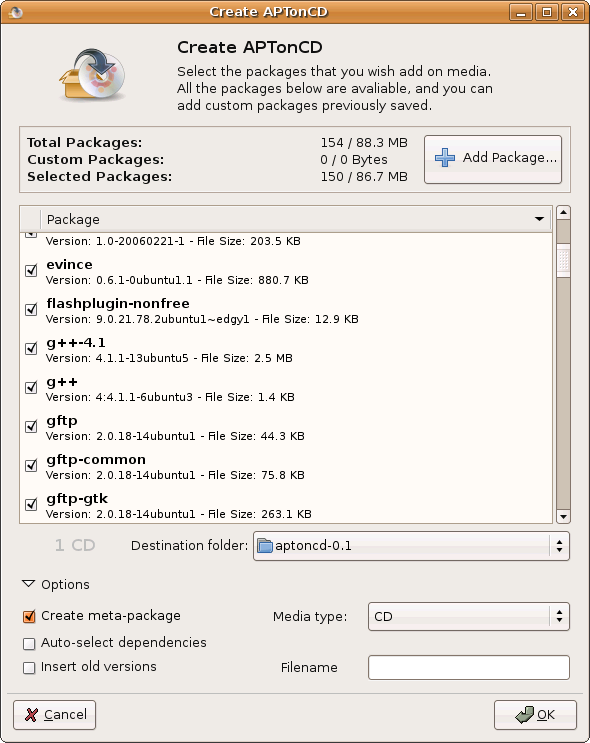
APTonCD : Create a Portable Package Repository

You've just finished installing Ubuntu and configured it with all your favorite applications, what if for some reason you now have to re-install it and don't know what packages you need to install.

This is hard, right ? Just checkout this cool application
APTonCD.

What is APTonCD

APTonCD is a simple Graphical Interface tool which enables you to create DVDs or CDs with all the packages you have downloaded using apt-get or Aptitude.It can also be used to create disks with all your pakages located in a specific repository. You don't need internet connection anymore when you have to re-install everything.


Features
  • Backup - Backup all the packages downloaded via aptitude, apt-get and synaptic.

  • Transport - You can carry all your favorite packages with you and install them anytime anywhere without worrying about an internet connection.

  • Download - You can downlaod and Backup an entire repository or a specific section to a CD or DVD.

  • Share - Share your favorite applications and packages with your friends.

External Links

Official site of APTonCD is http://aptoncd.sourceforge.net/

You can obtain your copy of APTonCD from the download page.


September 19, 2008

Ubuntu : Install Windows Applications with Wine!

Is it possible to install Windows applications in Linux ? this is the question often people ask me when I suggest to use Linux instead of windows. So I decided to write a how-to on installing windows software in Linux.

What is Wine ?

Wine is a FOSS software which aims to allow Unix-Like computer operating systems to install and execute programs written for Microsoft windows.


How to install Wine in my Ubuntu Machine ?

  • sudo apt-get install winewill install the wine from internet Repositories, when the installation is successfully completed a menu item will be placed in the applications menu in the top panel.
Using Wine to install Programs

  • Go to Applications ->Wine -> Configure Wine


Click on the Configure Wine Options shown in the menu. A new configuration window will prompt you to configure wine.There are two ways to open a windows application using wine.

  • The first is to select the Applications Tab on the configure Wine box and click on the Add Application Button, Locate your .exe file and add it.For this example I tried putty.exe (click to obtain your copy!).
  • The second way is the simplest,Just double click on the .exe file that you wanted install in your Linux (the problem with this is, sometimes this methode may not work).


Now it's time to play with your programs! Wine creates a folder called .wine in your home directory, you can access your virtual c drive there.
Opening Applications From terminal

  • open your terminal and type cd ~/ to enter your home directory
  • now type cd .wine/drive_c/ and press return to enter your virtual c drive
  • list the files using ls command and you will find Program Files Directory there.Just browse through and find your program and wine it (just type wine program_name.exe).


Opening Applications Directly
  • Just double click on the application that you want to open, and the wine will open it for you.
Okey now it's time to switch to Linux, Stop using windows ... :)

Ubuntu : Installing Flash player

Flash player is one of the most important plugin that every Netizen needs for his everyday life. So Here is how to install a flash player in Ubuntu.


Installing Flash Player

There are several ways to install flash support in Ubuntu, here we are discussing two relatively easy methods

  • This is the easiest way to install flash player in Ubuntu, Just type in sudo apt-get install flashplugin-nonfree ,this will fetch and install the plugin from internet (this works only if you have an active internet connection).
If you don't have an internet connection, you may need to install flashplayer plugin manually.

  • Go to http://www.adobe.com and download the Adobe flashplayer (the tar.gz download,remember do it all from linux, otherwise you will be redirecte to windows ).In this example we consider the file is downloaded to ~/Desktop (~/ represents the user's directory in linux)

  • change directory to ~/Desktop

  • tar xvfz install_flash_player_9_linux.tar.gz command will untar the tar file and change directory cd install_flash_player_9_linux/

  • sudo ./flashplayer-installer will invoke the installer and you will be asked a few questions.Answer the questions appropreately an the installation will be completed succesfully

NB: if the installer is aking for the installation path of mozilla then just enter /usr/lib/mozilla

This is all.Now you are ready to rock with youtube and metacafe!

September 18, 2008

Xubuntu : Mount your OS X Partitions!

Xubuntu

Xubuntu is a light variant of Ubuntu with a simple interface and Low resource usage (more like a cut-down version of Ubuntu for low end machines). The User Interface (Xfce) is clutter free and simple. But when I installed it in my Mac Mini, I was not able to access my bluetooth keyboard (instructions to setup yours) and OS X Partitions. Mounting OS X partitions in Xubuntu is easy; let's have a look at it.


Creating a Mount Point

A mount Point is the place where you can mount the Partitions. Just create a directory where you want to mount your OS X partition (I created a mount point in my Desktop).

  • mkdir ~Desktop/your_drive_name_here
Now we need to find the partition where the OS X data are stored. fdisk command can be used to find information of your OS X partition.
  • sudo fdisk -l
Mounting the partition

Mounting is not a hard job in Xubuntu.
  • sudo mount -t hfsplus /dev/sda3 ~/Desktop/your_drive_name_here
Now everything is done,you can start using your OS X Partition in Xubuntu.

Unmounting the partition

To demount the partition you need to unmount it manually.
  • sudo umount your_drive_name_here

NB: If you wish to automate mounting process, you just need to edit the fstab file and your partition information there.
  • sudo gedit /etc/fstab will open fstab file in gedit (use vim instead of gedit, if it is not available in your machine).
find-out the below information within the file.
  • #dev/sda3
    /dev/sda3 _mountpoint hfsplus defaults 0 2
here replace /dev/sda3 with your Mac Partition information obtained from the fdisk -l command and replace _mountpoint with your mount point directory. Now you can save the file and reboot the machine. You'll have the partition mounted automatically when you login.

July 29, 2008

Entertainer : An open mediacenter solution for you

One of the most important aspect of why I wasn't shifting from OS X to Linux was lack of good Media center capabilities of Linux, So this week I've been searching for one and found entertainer, a new simple elegant and fresh looking Media center solution for Linux Machines. I think I started changing my mind.

Entertainer

Entertainer is a simple easy to use media center solutions for Linux machines with Gnome and XFace desktop environments. It is developed in Python.The Entertainer is still a kid in the open world but the developers are working hard to make it better.


Features

So let us have a look at the features that Entertainer offers.

Movies and TV-series

You can watch movies and TV-Series from your hard drive or any drive linked over the network. Entertainer even has meta data and cover art support.

Music library

You can now play all our

favorite music tracks easily, there are options that enables navigation of music by artist album,etc.We can even create custom play lists.Entertainer automatically downloads the art work and music information.

Photographs

Entertainer includes a photograph library, which allows you easily find your best shots.

Headlines

This is a cool feature that helps you to watch your favorite feeds even while you are resting in your sofa.

Weather

Entertainer can tell you the weather forecast at your, or any other location for the next 4 days. Quickly check if you need to pack that umbrella or your shots today.

Themes

Entertainer supports theming ! It is a disappointing factor now, because I was not able to find any new themes in the official site.


Turnoffs :(

Entertainer doesn't have any remote support.Currently it only supports keyboards to control it.The other main thing is several times entertainer fails due to bugs.Hope some of you can contribute by working on them.


How do you install entertainer in Ubuntu?


Okey now let's have a look at how I installed entertainer in my System.I've been trying entertainer in Ubuntu Hard y Heron, I've some install instructio ns if you prefer to spice up your Ubuntu.In order to install entertainer we need to have some packages installed.

Prerequisites


sudo apt-get install python-clutter python-gobject python-gtk2 python-gst0.10 python-clutter \
python-pysqlite2 python-cddb python-glade2 python-cairo python-feedparser \
python-pyinotify python-eyed3 python-pyvorb is python-imaging python-imdbpy \
python-notify

You can copy paste this code in your terminal to get these prerequisites installed.Remember you need an act ive internet connection to do so.

Now get the source code


  • svn checkout http://entertainer-media-center.googlecode.com/svn/trunk/ entertainer

You can grab the source code from entertainer using the above code by just typing it in your terminal. Okey when the source code is completely grabbed change directory to entertainer (cd entertainer).

Copy the configurations to your Home

  • cp cfg ~/.entertainer -R

when you are done,change directory to src (cd src)

Set Media Locations

Now we can add folders and locations where our media files located in our machine.

typing this code will show a window where you can add your media files.

  • ./entertainer-content-management.py

Now we are almost done.

Preparing the index

Type ./entertainer-backend.py in the terminal and let the entertainer prepare for the work.

just type ./entertainer-frontend.py to fire-up the Entertainer.

Now it's time for entertainment

You can control your Entertainer using keyboard :(

  • F - Toggle full screen on/off
  • P - Toggle pause/play when video or audio is playing.
  • S - Stop playback
  • H - Navigate to home screen. Press this anywhere and main menu will be displayed.
  • I - Toggle information view when watching photograph in full screen mode
  • 1,2,3,4 - Change video playback aspect ratio
  • Arrow keys - Navigate menus
  • Enter - Select current menu item
  • Backspace - Navigate to previous screen

Hope this is pretty easy work for all of you and you enjoy Entertainer, Please drop a comment if you need any help or if you have any doubt regarding the installation.

http://www.entertainer-project.com/ is the official Entertainer website.