Showing posts with label How-To Article. Show all posts

September 20, 2009

Making BSNL EVDO work in Ubuntu

A friend of mine recently told me that she is not using Linux because she can't configure her BSNL EV-DO in her Linux Machine.

See how I resolved the issue (She is using an Ubuntu Machine, so it is obvious that this tutorial is indented for those users with Ubuntu 8.04 or more).

So how do we do it ?

Plug the EV-DO to your USB port and then open your terminal (for those who don't know who to open a terminal, press alt+f2 and type gnome-terminal and press enter).

Type this sudo tail -f /var/log/messages

and you will see something like this in the terminal, if the modem is properly detected.
Sep 20 19:28:14 xxxxxxxxxxx-1510 kernel: [ 2821.869615] option 3-2:1.0: GSM modem (1-port) converter detected
Sep 20 19:28:14 xxxxxxxxxxx-1510 kernel: [ 2821.870366] usb 3-2: GSM modem (1-port) converter now attached to ttyUSB0
In this case the modem device is attached to ttyUSB0. Once you are done with it, you need to fill up the wvdial.conf file.

Spoiler Warning : sometimes you may not find wvdial.conf in your machine, don't worry you can install it using sudo apt-get install wvdialconf. Now you will be able to find the wvdial.conf in your /etc directory

Please save the below lines to your wvdial.conf file.

[Dialer Defaults]

Modem=/dev/ttyUSB0
Baud=115200
Dial Command = ATDT
Baud=115200
Dial Command = ATDT
init1=ATZ
init2=AT+CRM=1
Flow Control= Hardware (CRTSCTS)
Username =
Password =
Phone = #777
Stupid Mode = 1

Folks, if you don't know how to access the wvdial.conf, it is located in the /etc folder. You can open the terminal and type sudo gedit /etc/wvdial.conf and save the configurations in the file.

Now we are almost done with the configuration part.

To kick-start your Internet go to terminal and type sudo wvdial and stay connected always :)

August 15, 2009

'Demystifying Google' - Search efficiently

Google is the most advanced Internet search engine of our time. How many of us know that google search has more than that we think it can offer ?

Here are some small tips for those who don't know how to search efficiently.Google has the ability to accept some predefined search queries for providing efficient search results.

I'm going to discus some of those Special Commands and I'll explain each command briefly ,you can use this commands to form complex queries and find what you need in a flash.

"intitle:" - intitle:keyword
  • The "intitle:" syntax helps us to restrict the search results to pages containing the searched word in the title of the web-page. eg: intitle:mother will return links to the pages that have the word 'mother' in their title.
"inurl:" - inurl:keyword
  • The "inurl:" syntax is similar to the intitle but it returns the links of the pages whose url contain the word that is searched. for example inurl:cooking will show the links of pages whose url have the word cooking in it.
"site:" - site:website-url
  • You may need to find something from a specific site sometimes.For example searching for Mac Mini related articles in wired.com.
  • we can make use of the command - mac mini site:www.wired.com to find-out articles related to Mac Mini
"filetype:" - filetype:file-type
  • Looking for a specific file type (i.e. doc, pdf or ppt... ) or an ebook, this command can help you a lot. eg : mathematics filetype:pdf will list the pdf files realted to mathematics.
"link:" - link:site
"related:" - related:sitename
"cache:" - "cache:sitename"
"intext:" - intext:keyword
  • The “intext:” syntax searches for words in a particular website. It ignores links or URLs and page titles.For example: intext:gardening will return only links to those web pages that has the search keyword "gardening" in its web-page.
Pro Combinations

I hope these simple techniques can help you find informations more quickly and easily.Rather than using these techniques alone, you can try combining them to make complex queries inorder to achieve better results.Now start searching like a Pro.
  • For example : to search for pdf files in the adobe.com site we may create a new query - filetype:pdf site:adobe.com
  • While searching for pdf files if you need to avoid the results from a specific site, you can create a query filetype:pdf -site:adobe.com, which will not show any results realted to the search from adobe.com
Now we can move to some sophisticated methodologies of searching that will help us to increase the efficiency of our search.

Index browsing with google
  • There are sites with index browsing enabled, this means any one can browse the site directories like local directories.To find the results from index browsing enabled sites just include a "index of" command infront of the query.eg : "index of" rpm"

More Search Tips

'|' Operator
  • Using '|' symbol literaly means 'or'. For example you want to search for 'indian or american fish' then you can make use of | and the query will look something like indian|american fish the resulted links will contain either indian food or american food in their contents.
'&&' Operator
  • Consider we need to find the pages containing both the words cook and chinese,here the '&& operator can help us to find the best results. eg: cook&&chinese
'-' Operator
  • '-' can be used to avoid an item for example including -fall in a search query will tell google to avoid all results containing the word fall. eg : water -fall
'+' Operator
  • Google ignores common words and characters such as where, the, how, and other digits and letters that slow down the search.If a common word is essential to getting the results we can put a + operator infront of that word to make sure that Google paying attention to it. eg : peanut butter +or jelly
Calculator
  • We can use google to find the answers for our arithmetic operations, yeah this means google is a calculator too. just enter 5*9+(sqrt 10)^3= in the search field and see the results!

Currency conversion
  • Need to know how much is 46745.65$ in Indian Rs, Just enter '46745.65 dollars in INR' in the google search field to get the result.
Dictionary Definitions
  • define:word will show the definition of the specified word.
  • eg : define:eccentric
Unit Conversion
  • Unit Conversion is one of the features among the google search,eg : 10.5 cm in inches
Spell Checker
  • Don't know the spelling of a word ? Just enter the word in the Google search box, if the provided spelling is wrong Google will suggest the correct spelling for you. eg : coltorol
Fill in the Blank
  • Some times it is better to ask google a question is fill in the blank by providing an asterics (*) in the desired space. eg: Indians are * men
Google Clock
  • To see the time in the many places around the world, type in time and the city name.
  • eg : time Berlin

It is time to start Googling now... Have fun with these Commands and tips, combine them to get better results.

Have a nice time with Google...

NB: Just checkout this

55 Ways to have Fun with Google : a refreshing book for enhancing your Googling skills.The book is freely available for download.

http://www.55fun.com/book.pdf

October 28, 2008

VirtualBox : Fix "Spawning Session" problem

After installing some Ubuntu updates, I noticed that I couldn't start any Virtual Machine in Virtual Box.It shows a “spawning session” dialog which stuck at 0% forever.


Solution for the problem

If you can't close or terminate your VirtualBox program which is stuck with the 'Spawning Session' problem, just open the terminal and force kill the VirtualBox
  • type sudo killall VirtualBox in the terminal
Now you need to recompile the kernel module for VirtualBox, It's not that hard
  • just type sudo /etc/init.d/vboxdrv setup to recompile the kernel module and wait for a few seconds
You will get an output like the following
  • * Stopping VirtualBox kernel module * done.
  • * Removing old VirtualBox kernel module * done.
  • * Recompiling VirtualBox kernel module * done.
  • * Starting VirtualBox kernel module * done.
Now you can start playing with your virtual machines.

October 25, 2008

Elisa : Turn your Linux Box into a Media Center

Jealous with that Jaw-dropping Front Row or Windows Media Center ? Checkout Elisa, an open source cross-platform media center with simple looks and stable performance.


The Elisa Media Center boasts of many advanced features that will help you turn your Linux Box into a Media Center. Everything is packed in a simple interface with a professional look and feel.

Features

Movies - Watch your Video files and Movies, you can even watch your favorite videos from youtube and other sites.


Music - Listen to your Favorite Songs and organize your music collection by artists or album covers.


Photos - Entertain your friends with your animated slideshows and image previews.


Peripheral Devices - Let it be an iPod,External Hard Disk or a Digital Camera, Elisa Automatically detects them all.


Internet - Let it be Youtube, Flicker or other popular sites. You can have all of them at your fingertips.


Click here for a more detailed list of features.


Installing Elisa in Ubuntu

  • Installation of Elisa in Ubuntu and its Variants (Xubuntu,Kubuntu) are as simple as plucking a flower, just type sudo apt-get install elisa in the terminal.

Configure Your Media Directories
  • If your music and movies are already in the music folder and movies folder in the home directory, you need need not worry about this step.
  • Most probably you will have your music and movies located in another drive, in that case you can simply create a symbolic link.
  • consider you have all your music located in /home/user/Desktop/Test/ all you have to do is just create a shortcut of that directory and place it in the music folder. You can either use ln -s (from terminal) or Graphical User Interface for creating a link.

Pros and Cons
  • The Elisa is simple to install, configure and use.The interface is very good and clutter free.
  • There are a few problems occured occationally while playing video files, other than this there were no serious disadvantages.
Downlaod Elisa

Obtain your copy of Elisa from http://elisa.fluendo.com/


October 5, 2008

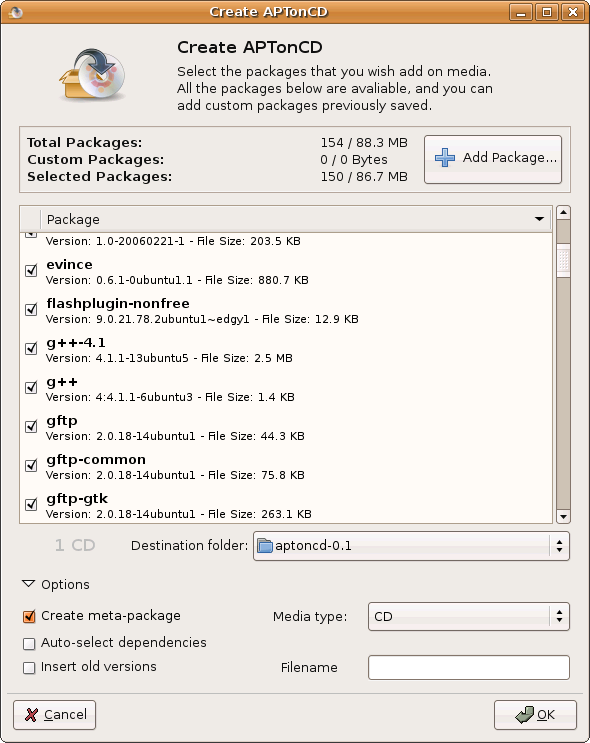
APTonCD : Create a Portable Package Repository

You've just finished installing Ubuntu and configured it with all your favorite applications, what if for some reason you now have to re-install it and don't know what packages you need to install.

This is hard, right ? Just checkout this cool application
APTonCD.

What is APTonCD

APTonCD is a simple Graphical Interface tool which enables you to create DVDs or CDs with all the packages you have downloaded using apt-get or Aptitude.It can also be used to create disks with all your pakages located in a specific repository. You don't need internet connection anymore when you have to re-install everything.


Features
  • Backup - Backup all the packages downloaded via aptitude, apt-get and synaptic.

  • Transport - You can carry all your favorite packages with you and install them anytime anywhere without worrying about an internet connection.

  • Download - You can downlaod and Backup an entire repository or a specific section to a CD or DVD.

  • Share - Share your favorite applications and packages with your friends.

External Links

Official site of APTonCD is http://aptoncd.sourceforge.net/

You can obtain your copy of APTonCD from the download page.


September 19, 2008

Ubuntu : Install Windows Applications with Wine!

Is it possible to install Windows applications in Linux ? this is the question often people ask me when I suggest to use Linux instead of windows. So I decided to write a how-to on installing windows software in Linux.

What is Wine ?

Wine is a FOSS software which aims to allow Unix-Like computer operating systems to install and execute programs written for Microsoft windows.


How to install Wine in my Ubuntu Machine ?

  • sudo apt-get install winewill install the wine from internet Repositories, when the installation is successfully completed a menu item will be placed in the applications menu in the top panel.
Using Wine to install Programs

  • Go to Applications ->Wine -> Configure Wine


Click on the Configure Wine Options shown in the menu. A new configuration window will prompt you to configure wine.There are two ways to open a windows application using wine.

  • The first is to select the Applications Tab on the configure Wine box and click on the Add Application Button, Locate your .exe file and add it.For this example I tried putty.exe (click to obtain your copy!).
  • The second way is the simplest,Just double click on the .exe file that you wanted install in your Linux (the problem with this is, sometimes this methode may not work).


Now it's time to play with your programs! Wine creates a folder called .wine in your home directory, you can access your virtual c drive there.
Opening Applications From terminal

  • open your terminal and type cd ~/ to enter your home directory
  • now type cd .wine/drive_c/ and press return to enter your virtual c drive
  • list the files using ls command and you will find Program Files Directory there.Just browse through and find your program and wine it (just type wine program_name.exe).


Opening Applications Directly
  • Just double click on the application that you want to open, and the wine will open it for you.
Okey now it's time to switch to Linux, Stop using windows ... :)

Ubuntu : Installing Flash player

Flash player is one of the most important plugin that every Netizen needs for his everyday life. So Here is how to install a flash player in Ubuntu.


Installing Flash Player

There are several ways to install flash support in Ubuntu, here we are discussing two relatively easy methods

  • This is the easiest way to install flash player in Ubuntu, Just type in sudo apt-get install flashplugin-nonfree ,this will fetch and install the plugin from internet (this works only if you have an active internet connection).
If you don't have an internet connection, you may need to install flashplayer plugin manually.

  • Go to http://www.adobe.com and download the Adobe flashplayer (the tar.gz download,remember do it all from linux, otherwise you will be redirecte to windows ).In this example we consider the file is downloaded to ~/Desktop (~/ represents the user's directory in linux)

  • change directory to ~/Desktop

  • tar xvfz install_flash_player_9_linux.tar.gz command will untar the tar file and change directory cd install_flash_player_9_linux/

  • sudo ./flashplayer-installer will invoke the installer and you will be asked a few questions.Answer the questions appropreately an the installation will be completed succesfully

NB: if the installer is aking for the installation path of mozilla then just enter /usr/lib/mozilla

This is all.Now you are ready to rock with youtube and metacafe!

September 18, 2008

Xubuntu : Mount your OS X Partitions!

Xubuntu

Xubuntu is a light variant of Ubuntu with a simple interface and Low resource usage (more like a cut-down version of Ubuntu for low end machines). The User Interface (Xfce) is clutter free and simple. But when I installed it in my Mac Mini, I was not able to access my bluetooth keyboard (instructions to setup yours) and OS X Partitions. Mounting OS X partitions in Xubuntu is easy; let's have a look at it.


Creating a Mount Point

A mount Point is the place where you can mount the Partitions. Just create a directory where you want to mount your OS X partition (I created a mount point in my Desktop).

  • mkdir ~Desktop/your_drive_name_here
Now we need to find the partition where the OS X data are stored. fdisk command can be used to find information of your OS X partition.
  • sudo fdisk -l
Mounting the partition

Mounting is not a hard job in Xubuntu.
  • sudo mount -t hfsplus /dev/sda3 ~/Desktop/your_drive_name_here
Now everything is done,you can start using your OS X Partition in Xubuntu.

Unmounting the partition

To demount the partition you need to unmount it manually.
  • sudo umount your_drive_name_here

NB: If you wish to automate mounting process, you just need to edit the fstab file and your partition information there.
  • sudo gedit /etc/fstab will open fstab file in gedit (use vim instead of gedit, if it is not available in your machine).
find-out the below information within the file.
  • #dev/sda3
    /dev/sda3 _mountpoint hfsplus defaults 0 2
here replace /dev/sda3 with your Mac Partition information obtained from the fdisk -l command and replace _mountpoint with your mount point directory. Now you can save the file and reboot the machine. You'll have the partition mounted automatically when you login.

August 27, 2008

Enable Root user in Mac OS X

Certain times we need to enable the root account in the Mac OS X for installing certain XII applications or some other Applications. But root user is disabled and not accessible by default in the OS X.

How to enable "root" user in OS X

Open the Utilities folder located in the Applications Menu, You can open it using Mac to Go -> Utilities or Shift+Command+U will open the Utilities folder for you.


Open the "Directory Utility" from the Utilities folder (There is another program called Directory, but don' confuse yourself with both of these."Directory Utility" is different from the "Directory" ).


Click on the "Click the lock to make changes" to activate the administering mode.


Enter your user name and Password in the prompt.


Now go to "Edit" Menu and click "Enable Root User"


Enter a new password for your "root" account in the pop up box.


Click on this lock button again to enable the lock for preventing further changes.


Now everything is set and you are ready to go.You can start using your OS X root account!

August 19, 2008

BitTorrent : Faster and more stable Downloads

What is BitTorrent ?

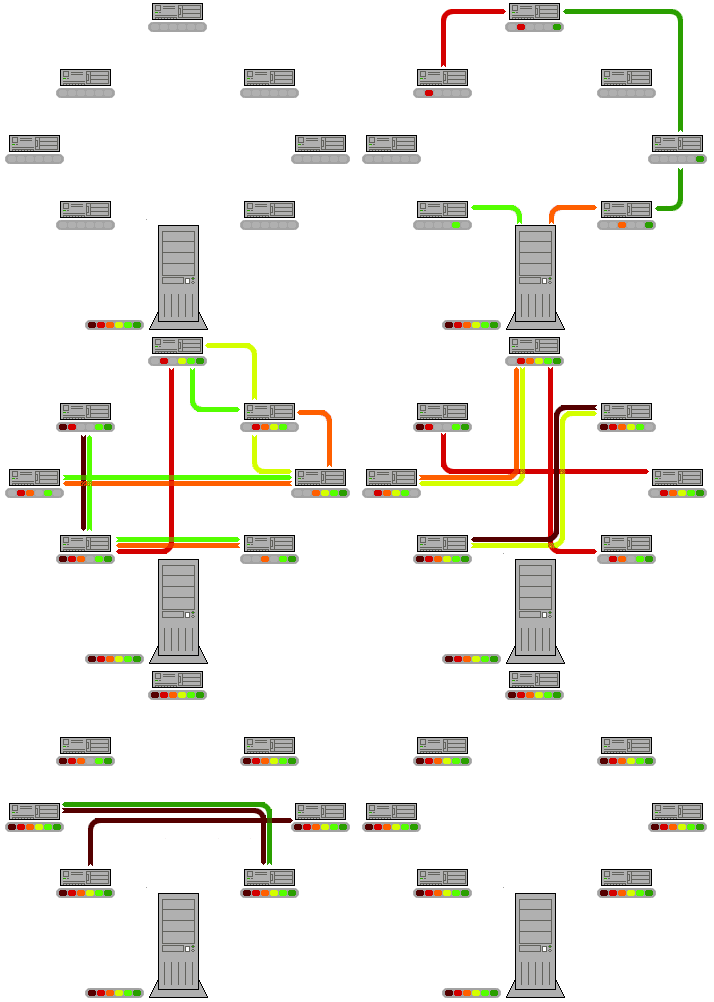
BitTorrent is an open source peer-to-peer protocol for distributing large amounts of data and files over the internet.The idea behind BitTorrent is to allow massive distribution of popular files without paining the actual source(Server).


How the traditional download works ?

Consider a traditional download method, where the user downloads a file from a server.When unusually high numbers of users are simultaneously downloading the same file, causing the server to run out of available bandwidth. When this happens the clients are refused a connection with the server and even results in a server crash.

To solve this problem Programmer Bram Cohen released a protocol called BitTorrent in April 2001.

How the BitTorrent Works then ?


image courtesy of wikipedia

The first distributor or server acts as the first seed, then each pair who downloads the data also shares the downloaded parts with the other peers.This helps to reduce the original distributor's bandwidth and hardware resource costs.

You can read more about BitTorrent here..


How do I download files using BitTorrent ?

Using BitTorrent for downloading files is very simple, all you need is a BitTorrent client and an active internet connection.Okey we can do it in 3 easy steps.

1. Get a BitTorrent client

  • BitTorrent client is a software that uses BitTorrent protocol to download and manage torrents.There are a lot of BitTorrent client software available for each platform(Mac,Linux and Windows).Some popular BitTorrent clients are : Vuze (formerly known as Azureus),BitTorrent,uTorrent.
  • Just download any of these client software and install it.(Azureus and BitTorrent are available for Windows Linux and Mac OS X).


2. Find a torrent to download

  • Okey now you have a BitTorrent client installed, now you need to find some torrent you like to download.
click on the image to enlarge

  • for example : go to www.mininova.org and search for ''elephants dream" and click on a search results with more number of seeders (more number of seeders means fast download rates).


click the image to enlarge
  • Now click on the desired torrent link and download the torrent file (.torrent file) from the site.


3. Start the download

  • Once the file is downloaded double click on the file to open it.Some clients like Vuze may ask you to specify where to save the files.

That's all, now you are using BitTorrent !

Tips and Techniques

There are several BitTorrent sites , here are some of my favorites

For faster Download rates

Choose torrents with more seeders than leechers
http://torrentfreak.com/speed-up-your-torrents/ checkout this link for a nice article on how to increase your torrent speed.

Read my review on Vuze (Formerly known as azureus), one of the most advanced and feature rich BitTorrent client available.

August 7, 2008

Ubuntu : Setup your Bluetooth Keyboard

I have a Mac Mini with Apple wireless keyboard and I use Ubuntu.This tutorial may help you fix your Wireless keyboard problems with Ubuntu.This is a pretty easier task.

This tutorial will work with all bluetooth keyboards.

Discovering the Mac address of our Keyboard

We need the mac address of the keyboard to complete the setup. I'll use keyboard_mac_address which you should replace with your keyboards Mac address.Make sure your keyboard is on and ready to be visible in the computer(turn it on and press any key).

Now open the terminal window and run the following command

hcitool scan

the result will be some thing like :

Scanning . . .

keyboard_mac_address keyboard_name

here the keyboard_mac_address will be the mac address (e.g. 00:00:00:00:00) of the Keyboard and the keyboard_name will be the name of the keyboard.


Adding Keyboard to the configuration files

now run sudo gedit /etc/bluetooth/hcid.conf in your terminal to open the configuration file in root mode.

a file will be opened in gedit, now you need to add the following lines to the end of the file.


device keyboard_mac_address {

name "keyboard_name";

auth enable;

encrypt enable;

}


You need to replace the keyboard_mac_address with the actual mac address of the keyboard and keyboard_name with the actual keyboard name.

Restart the Bluetooth service

Now we need to restart the bluetooth services

run sudo /etc/init.d/bluez-utils restart in the terminal window

Pairing the Keyboard

sudo hidd --search

As soon as the keyboard_mac_address appears, you must enter a PIN code into the keyboard. It must consists of numbers not using the numpad.Type this keyboard in to the keyboard and press Return (Enter).A window will pop asking you for the number you just entered on the keyboard. Certain times my Apple wireless keyboard connected without this PIN code entering.

Enabling automatic reconnection

type sudo gedit /etc/default/bluez-utilz to access the configuration file in root mode.

Find the code HIDD_ENABLED=0 in the configuration file and replace it with HIDD_ENABLED=1

Now you can reboot your machine and hopefully they will be automatically connected.

Tip for Xubuntu Users

by default
gedit is not available in Xubuntu and Xubuntu users must replace bluez-utils with bluetooth . Everything else is exactly the same as described

August 6, 2008

Ubuntu : How to install RPM packages in ubuntu

If you have an rpm file for a package you wish to install, and if you cannot find a .deb debian package.You can use alien package converter to install your rpm file in ubuntu.

The alien site describes it this way :

"Alien is a program that converts between the rpm, dpkg, stampede slp, and slackware tgz file formats. If you want to use a package from another distribution than the one you have installed on your system, you can use alien to convert it to your preferred package format and install it."

Installing Alien

Installing alen is an easy task with Ubuntu


$sudo apt-get install alien


This command will get and install the alien from ubuntu depositaries, sometimes you might need to run the apt-get update command before executing the above command.

How to convert a .rpm file to .deb file

To install the .rpm file, you first need to convert it to the debian package (.deb) file.Only debian packages can be installed in Ubuntu directly.

Assume that we have our rpm package with name name-of-rpm-file.rpm. You can convert it using the following commands.

$sudo alien -k name-of-rpm-file.rpm

This command will convert the .rpm to a .deb.

- The “-k” will keep the version number. Otherwise alien adds a “1″ to the version number.

Now everything is ready, and the debian package is available in the directory.


How to install the debian package


We have the converted file in our directory.Now we can install the package using the newly generated debian package (.deb file).To install the debian package you just need to type

$sudo dpkg -i name-of-deb-file.deb

in your terminal window.


Hope this works for you.Fore more information and help on alien, just have a glance at the man page or drop a comment here.


Ubuntu : How to enable the root account

Ubuntu is one of the few Linux distributions out there that will not enable the root account, You might have noticed that unlike the other Linux distributions the Ubuntu is not asking for the root password while the installation is being done.This is why we are not able to access the root account.

How to enable root account ?

Enabling root account is a simple task, simply type
sudo passwd root
in your terminal window to change the root password.

Disabling the root account : sometimes you might need to disable the root account,

sudo passwd -l root
type this command in the terminal window, and it will disable the root account.

NB: it is suggested that you use the sudo command instead of using the root account.

July 29, 2008

Entertainer : An open mediacenter solution for you

One of the most important aspect of why I wasn't shifting from OS X to Linux was lack of good Media center capabilities of Linux, So this week I've been searching for one and found entertainer, a new simple elegant and fresh looking Media center solution for Linux Machines. I think I started changing my mind.

Entertainer

Entertainer is a simple easy to use media center solutions for Linux machines with Gnome and XFace desktop environments. It is developed in Python.The Entertainer is still a kid in the open world but the developers are working hard to make it better.


Features

So let us have a look at the features that Entertainer offers.

Movies and TV-series

You can watch movies and TV-Series from your hard drive or any drive linked over the network. Entertainer even has meta data and cover art support.

Music library

You can now play all our

favorite music tracks easily, there are options that enables navigation of music by artist album,etc.We can even create custom play lists.Entertainer automatically downloads the art work and music information.

Photographs

Entertainer includes a photograph library, which allows you easily find your best shots.

Headlines

This is a cool feature that helps you to watch your favorite feeds even while you are resting in your sofa.

Weather

Entertainer can tell you the weather forecast at your, or any other location for the next 4 days. Quickly check if you need to pack that umbrella or your shots today.

Themes

Entertainer supports theming ! It is a disappointing factor now, because I was not able to find any new themes in the official site.


Turnoffs :(

Entertainer doesn't have any remote support.Currently it only supports keyboards to control it.The other main thing is several times entertainer fails due to bugs.Hope some of you can contribute by working on them.


How do you install entertainer in Ubuntu?


Okey now let's have a look at how I installed entertainer in my System.I've been trying entertainer in Ubuntu Hard y Heron, I've some install instructio ns if you prefer to spice up your Ubuntu.In order to install entertainer we need to have some packages installed.

Prerequisites


sudo apt-get install python-clutter python-gobject python-gtk2 python-gst0.10 python-clutter \
python-pysqlite2 python-cddb python-glade2 python-cairo python-feedparser \
python-pyinotify python-eyed3 python-pyvorb is python-imaging python-imdbpy \
python-notify

You can copy paste this code in your terminal to get these prerequisites installed.Remember you need an act ive internet connection to do so.

Now get the source code


  • svn checkout http://entertainer-media-center.googlecode.com/svn/trunk/ entertainer

You can grab the source code from entertainer using the above code by just typing it in your terminal. Okey when the source code is completely grabbed change directory to entertainer (cd entertainer).

Copy the configurations to your Home

  • cp cfg ~/.entertainer -R

when you are done,change directory to src (cd src)

Set Media Locations

Now we can add folders and locations where our media files located in our machine.

typing this code will show a window where you can add your media files.

  • ./entertainer-content-management.py

Now we are almost done.

Preparing the index

Type ./entertainer-backend.py in the terminal and let the entertainer prepare for the work.

just type ./entertainer-frontend.py to fire-up the Entertainer.

Now it's time for entertainment

You can control your Entertainer using keyboard :(

  • F - Toggle full screen on/off
  • P - Toggle pause/play when video or audio is playing.
  • S - Stop playback
  • H - Navigate to home screen. Press this anywhere and main menu will be displayed.
  • I - Toggle information view when watching photograph in full screen mode
  • 1,2,3,4 - Change video playback aspect ratio
  • Arrow keys - Navigate menus
  • Enter - Select current menu item
  • Backspace - Navigate to previous screen

Hope this is pretty easy work for all of you and you enjoy Entertainer, Please drop a comment if you need any help or if you have any doubt regarding the installation.

http://www.entertainer-project.com/ is the official Entertainer website.